How to Find Where an Audio Clip Plays in a Long Recording
You have a short piece of audio and a long file. A jingle and a three-hour air check. A sponsor read and a season of podcast episodes. A ringtone, an alarm, a sample, a sentence from an IVR prompt — and a recording that runs for hours. The question is always the same: where in the recording does this clip play, and how many times?
Text has Ctrl+F. Sound does not. Scrubbing through a waveform by eye works for a minute of audio and fails at an hour, and listening at double speed still costs half the length of the recording. This guide shows how to search sound the way you search text: give the program the clip, give it the recording, get a list of every match with exact times.
Why the usual tools do not do this
- Media players and editors show you the waveform and let you listen. They do not search. Finding ten plays of a 20-second spot in a six-hour file by hand is an afternoon of work, and a play that was partly cut off is easy to miss.
- Song recognition apps answer a different question: "what song is this?" They identify a track against a catalog of music. They do not tell you where in your file a clip plays, and they need your audio to leave your computer.
- Transcription search finds words. It cannot find a jingle, a sound effect or a piece of music, and it misses a sentence that was spoken over a bed or through a bad phone line.
- Command-line offset finders (Python scripts around FFmpeg) report the single best alignment of one file inside another. They are built for synchronizing two recordings of the same event, not for listing every play of a clip across a folder of recordings, and they need a terminal, Python and FFmpeg set up first.
What is needed is a search: many clips, many recordings, every match listed, each one checkable by ear. That is what Audio Scanner does.
What the search looks like
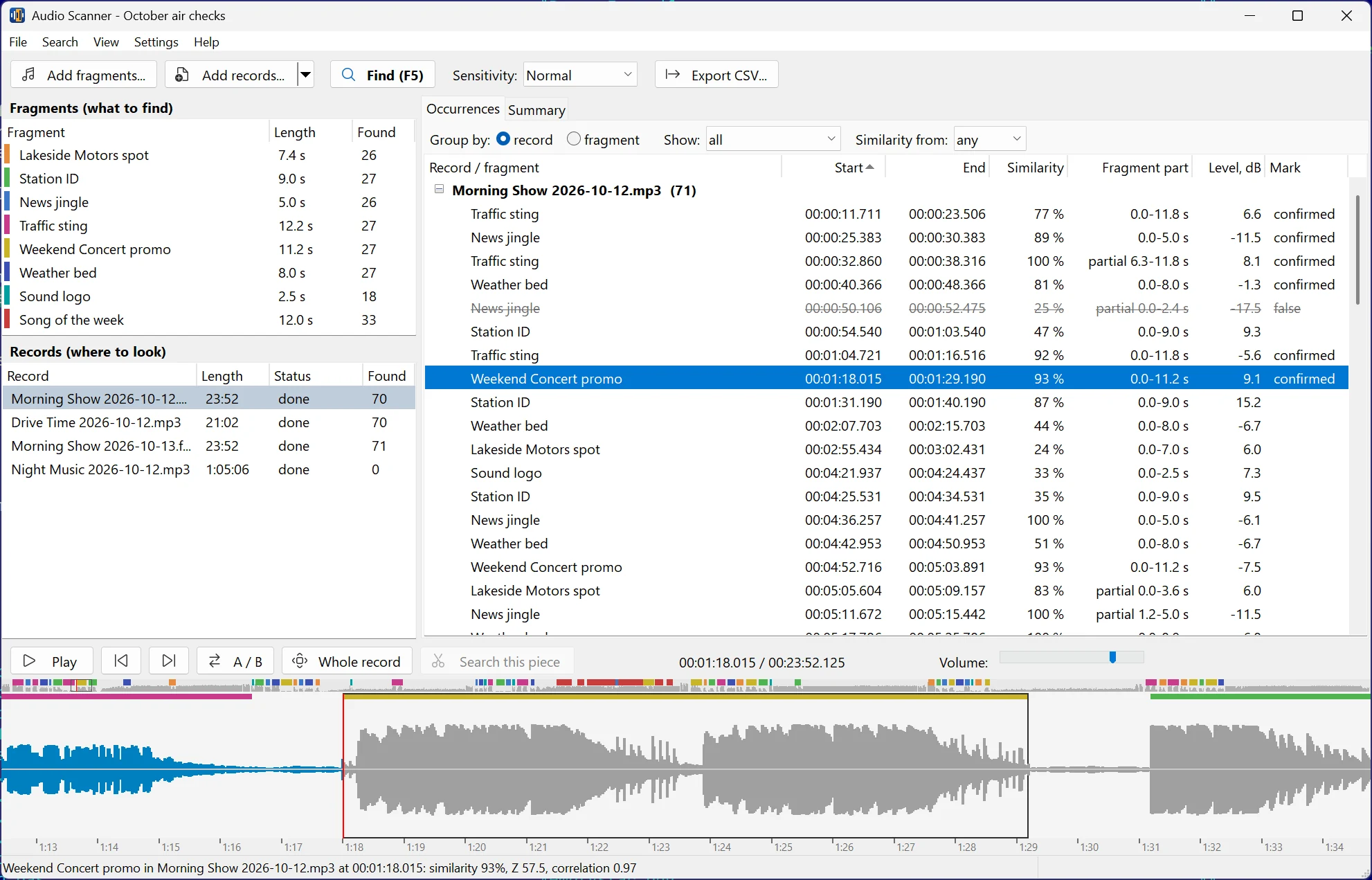
Eight clips searched in two and a half hours of recordings. Every play is listed with its position; the selected one is shown on the waveform.
Audio Scanner computes an acoustic fingerprint of the clip and of the recording: the pattern of spectral peaks over time, the same class of technology that song recognition services use, running locally on your PC. The recording is read once, every clip is checked at the same time, and the matches are confirmed by comparing the actual sound at the candidate position. The result is a list, not a guess: each occurrence has a start and an end to the millisecond, a similarity percentage and a note of which part of the clip played.
Step by step
- Add the clip. Click Add fragments… or drop the file onto the left list. A clip can be anything from about two seconds to a few minutes long: a jingle, a spot, a sting, a piece of a song, a spoken phrase. You can add many at once, and a set of clips can be saved and reused later (File → Save fragments as a set…).
- Add the recording. Click Add records…, or Add records from folder… to take a whole folder with its subfolders. Length does not matter: a full day of broadcast or a 4 GB WAV file is fine.
- Press Find (F5). Matches appear in the Occurrences list as the search runs. A 24-hour MP3 checked for 50 clips takes about a minute on an ordinary 4-core PC; a one-hour file takes seconds.
- Read the results. Each line shows the record, the fragment, Start and End in the recording, Similarity in percent, the Level in dB relative to the original clip, and partial 6.3–11.8 s when only part of the clip sounded. Group the list by record or by fragment, and filter it by similarity or to full plays only.
- Listen to check. Click an occurrence: the waveform of the recording opens with every find marked in the colour of its clip. Press Play to hear the find, or A / B to switch between the original clip and what was found in the recording. Mark a find as confirmed or false; false ones are left out of exports.
- Use the list. Copy the lines, export to CSV, save an HTML report, or write the finds as Audacity labels, a cue sheet or Adobe Audition markers to jump to them in your editor. Save the whole thing as a project to come back to it. (Exports need a license; searching, viewing and listening are free.)
The hard cases: quieter, cut off, talked over
Real recordings are not clean copies of the clip. The fingerprint is built to survive that:
- Volume. A clip played 10 dB quieter or louder is found; the level difference is shown in the Level column.
- Voice-over and music on top. A jingle under a presenter, a sponsor bed under a read, a sample inside a mix: the clip is still found, with a lower similarity percentage.
- Cut at either end. A spot that was faded early or joined late is reported as partial with the exact part of the clip that played.
- Different format, bitrate, sample rate. A WAV master is found in a 64 kbps MP3 or a 32 kbps Opus recording. The match is by sound, not by bytes.
- Phone recordings. For 8 kHz call recordings switch on Settings → Telephone band (300–3400 Hz), so the fingerprint uses only the band the phone line carries.
Three sensitivity presets, Strict, Normal and Sensitive, set how far from the original a match may be. Switching between them re-filters the results at once, without a new search. Finds just below the current threshold stay visible in grey as possible (View → Show possible finds), so when the list says "no occurrences" you can see what nearly matched instead of wondering whether the search looked hard enough. If a clip you can hear is still missing, click the place on the waveform and use Search → Report a miss…: with your consent the clip and a short piece of the recording are sent to us, and we tune the search.
Choosing a good clip
- Two seconds or more. Shorter sounds have too few spectral peaks to be told apart from everything else. A five-second jingle is ideal; a 30-second spot is easy.
- Something, not nothing. Silence, a pure tone and plain noise have no fingerprint. Audio Scanner checks every clip when you add it and warns about silence, a very short clip, a steady tone or noise.
- Trim leading and trailing silence if you like, but you do not have to: silent edges are ignored by the search, and positions are still reported in the coordinates of the recording.
- Cut the clip out of the recording itself when you have no clean copy. Select the piece on the waveform and press Search this piece: it is saved as a clip and searched at once. This is the quickest way to find every repeat of something you have just heard.
Who searches sound this way
- Radio stations and advertisers count the plays of every spot in air-check recordings: see how to count how many times a jingle or ad played and how to make a proof-of-play report.
- Podcasters and editors find intros, sponsor reads and repeated segments across a back catalog and jump to them in the editor with exported markers.
- Call centres and compliance teams check that a mandatory announcement was actually played in call recordings, without sending the calls to anyone.
- Archivists, lawyers and rights holders look for a known excerpt in hours of material and need a reliable "not found" as much as a find.
- Musicians and producers find where their sample, track or beat was used in a long mix or a video.
Looking for duplicate songs rather than a clip inside a recording? That is a different job: Audio Comparer compares whole tracks and finds the copies.
Search your recording now
The free version finds, shows and plays every occurrence, with no time limit. Nothing leaves your PC.
Free Download Buy — $59.95✅ Free version finds and plays everything | ✅ 100% offline | ✅ Windows 10, 11