Proof-of-Play Report for Radio Ads: Make One Yourself in 5 Minutes
Advertisers want to know that what they paid for went to air. Big networks buy that assurance from monitoring services that listen to hundreds of stations and sell the reports back. A small station, a regional agency or a direct advertiser usually gets a printout of the automation log and a signed affidavit of performance — a log that says what was scheduled, signed by somebody who did not listen to the air.
Most stations already record their own output around the clock. That air check is the evidence. This guide shows how to turn a day of it into a proof-of-play report: every spot, the real time of every play, its duration, whether it was complete, and the totals, as an HTML page you can send and a CSV you can bill from. No service, no subscription, and the recordings never leave your PC.
What the report contains
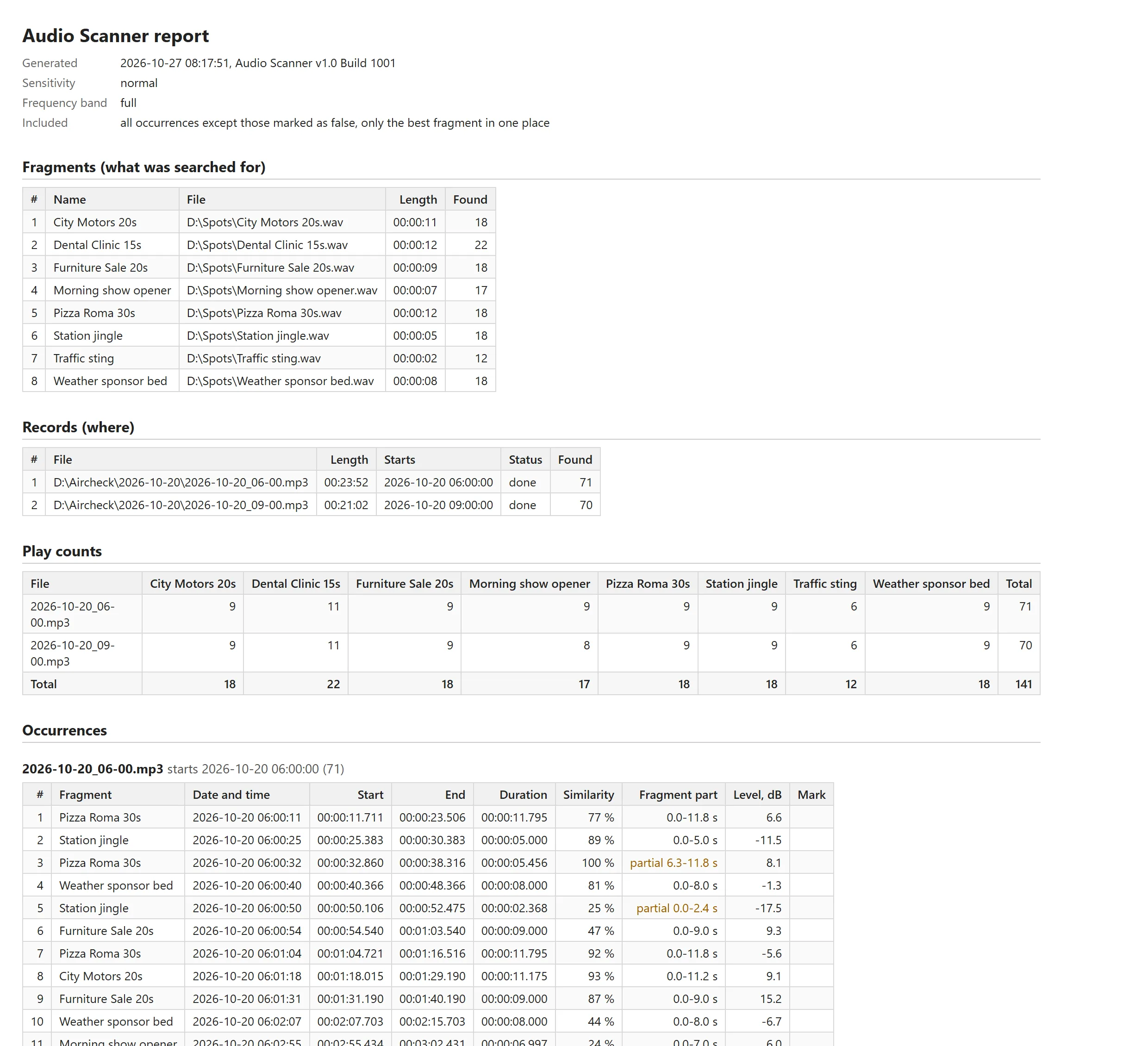
The HTML report for one morning: eight spots, two hour files, play counts per spot, then every play with its date and time.
- Header: when the report was made, the sensitivity used, and what is included (for example everything except finds marked as false).
- Fragments: the spots that were searched for, with their length and the number of plays found.
- Records: the air-check files, their length, when each one starts and whether the search completed.
- Play counts: the table advertisers read first — rows are recordings, columns are spots, with totals.
- Occurrences: under each recording, every play with its date and time, position in the file, duration, similarity in percent, the part of the spot that played (partial 6.3–11.8 s when it was cut) and the level in dB. Finds you marked as confirmed carry the mark.
The CSV has the same plays one per line, with ISO dates that Excel and Google Sheets read as dates, so an agency can filter it by advertiser and paste it into the invoice.
Step by step
- Add the spots. Use the files the automation plays — the complete spot in any format. Add fragments… or drag them in. Name them the way the client knows them ("Pizza Roma 30s"); the names are what the report shows. Save the lot as a set: File → Save fragments as a set…, and from now on Add fragments from a set… loads this advertiser or this month in one click.
- Add the air checks. Add records from folder… on the logger's folder for the day. Hour files or one 24-hour file, MP3 at 64 kbps or WAV, both are fine.
- Tell the program when each recording starts. Settings → Record start time… offers four sources: from the file name by a template (loggers name files 2026-10-20_06-00.mp3, 20261020-0600.mp3 and so on; the template uses YYYY MM DD hh mm ss, ? for any character and * for any text), the file creation time, the file modification time taken as the end of the recording, or a time typed by hand for one record. Once set, every play is shown as a date and time, not only as an offset in the file.
- Press Find. A full day with 50 spots takes about a minute on a 4-core PC. The Summary tab shows the play counts as soon as the search ends.
- Check what needs checking. Sort Occurrences by similarity. A play at 90 % needs no attention. A partial play, or one at 40 % because it ran under the presenter, is worth a listen: click it, press Play, or A / B to compare with the original spot. Mark it confirmed so the report says you did, or false to leave it out. If a spot you can hear on the air is not in the list, switch the sensitivity to Sensitive — the results re-filter at once — and look at the grey possible finds; if it is still missing, Search → Report a miss… sends us the case, with your consent, and we tune the search.
- Save the report. File → Save HTML report… for the client, Export results to CSV… for the traffic department. Save the project too: open it next week and the finds, the marks and the start times are still there.
Every day, without opening the window
Once the spot set and the folder layout are settled, the report is one command. The licensed version searches from the command line and writes the files:
AudioScanner.exe /scan /needles "D:\Spots\*.mp3" /in "D:\Aircheck\2026-10-20" /start auto /html "D:\Reports\2026-10-20.html" /csv "D:\Reports\2026-10-20.csv"
/needles and /in take a file, a folder (with subfolders) or a mask and can be repeated; /project takes a saved project instead; /start auto reads the start time from the file name or the file date; /sens picks the sensitivity and /phone the telephone band. Put the command into Windows Task Scheduler for six in the morning with yesterday's date in the paths, and the report for every day of broadcast is waiting when the sales team arrives. The exit code tells the scheduler whether anything was found, so a day with zero plays of a booked spot can raise an alert.
Why the air check beats the log
- It is what listeners heard. A spot that the automation logged but the processor, the STL or the transmitter dropped is absent from the air check, and so from the report.
- It shows cut-offs. A play joined late or faded under the news is reported as partial with the seconds that actually ran; the log would show it as complete.
- It is independent of the automation vendor. Any logger, any automation system, any format; the report looks the same.
- It works for the buyer too. An agency or an advertiser who records the station themselves can produce the same report and compare it with the affidavit.
The report is a factual record of what was found in the recording. Whether it is attached to an affidavit of performance, sent with the invoice or kept for a dispute is up to the station's own practice and the rules it operates under.
The same report for other jobs
Replace "spot" with any clip and the workflow holds: network programme openers at affiliates, syndicated show content, station imaging, sponsor reads in a podcast back catalog, a mandatory disclosure in call recordings (switch on Telephone band for 8 kHz audio), a track in a day of music programme. For the basics of the search see how to find where an audio clip plays in a long recording; for the counting side, how to count how many times a jingle or ad played.
Make the first report today
Download the free version, search a day of air checks and listen to the finds. The one-time license of $59.95 adds the HTML report, the CSV and the daily command line — no subscription.
Free Download Buy — $59.95✅ Free version finds and plays everything | ✅ 100% offline | ✅ Windows 10, 11